> ## Documentation Index
> Fetch the complete documentation index at: https://flow9.mintlify.site/llms.txt
> Use this file to discover all available pages before exploring further.
# Connect Claude
> Add Flow9 to claude.ai, Claude Desktop or Claude Code.
Flow9 works with Claude on the web, on the desktop app, and in Claude Code. All
three use the same address and the same sign-in.
Flow9 is not yet listed in Claude's connector directory, so you add it
yourself as a **custom connector**. This works on every Claude plan,
including the free one.
## Before you start
* An admin must have enabled AI access for your workspace — see
[Enabling AI connections](/admin/ai-connections)
* You need your normal Flow9 login
## claude.ai (web)
Click your name at the bottom left, then **Settings**.
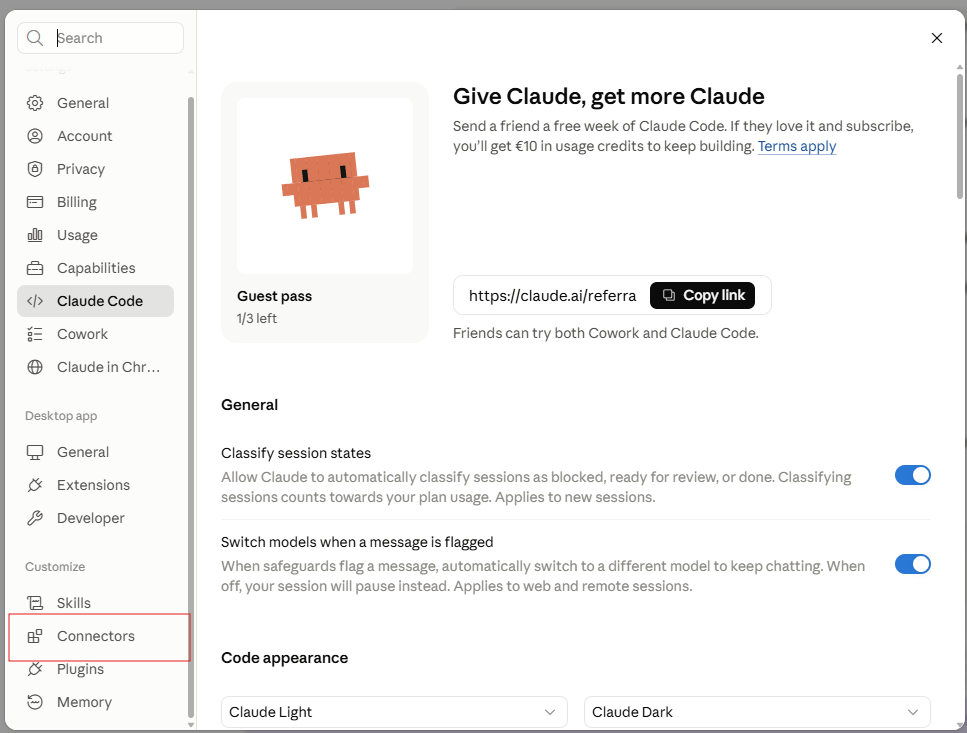
In the settings sidebar, under **Customize**, choose **Connectors**.
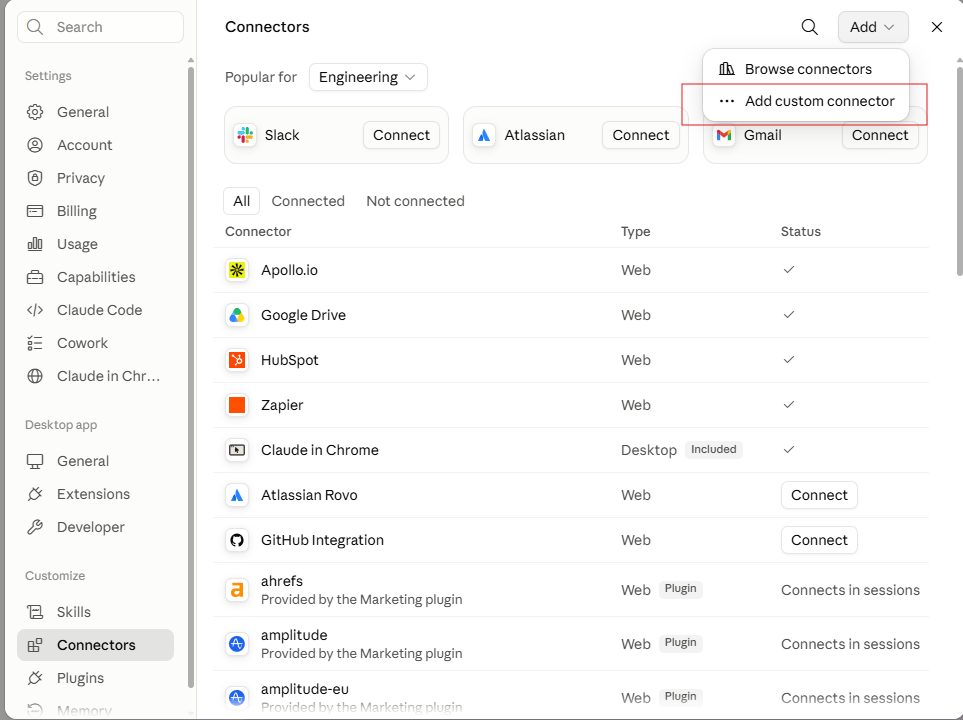
 Click **Add** in the top right, then **Add custom connector**.
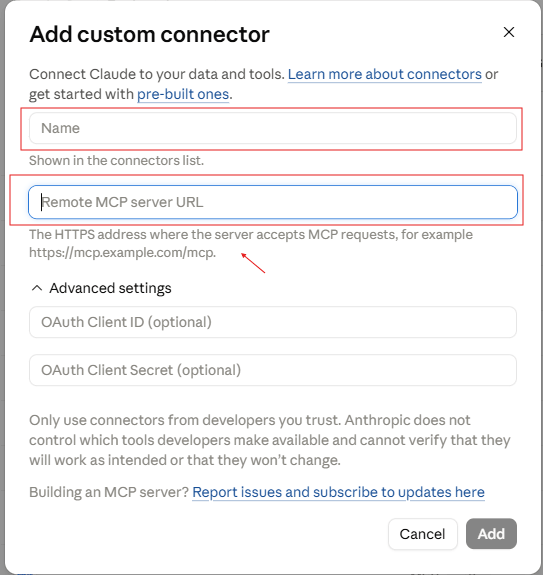
 **Name** — `Flow9` (this is just the label in your connectors list)
**Remote MCP server URL** — `https://mcp.flow9.online`
Leave **Advanced settings** alone. The OAuth Client ID and Secret are
optional and Flow9 does not need them — Claude registers itself
automatically. Then click **Add**.
**Name** — `Flow9` (this is just the label in your connectors list)
**Remote MCP server URL** — `https://mcp.flow9.online`
Leave **Advanced settings** alone. The OAuth Client ID and Secret are
optional and Flow9 does not need them — Claude registers itself
automatically. Then click **Add**.
 Flow9 now appears in your connectors list. Click **Connect** and a Flow9
sign-in page opens in your browser. Sign in with your normal account.
Flow9 now appears in your connectors list. Click **Connect** and a Flow9
sign-in page opens in your browser. Sign in with your normal account.
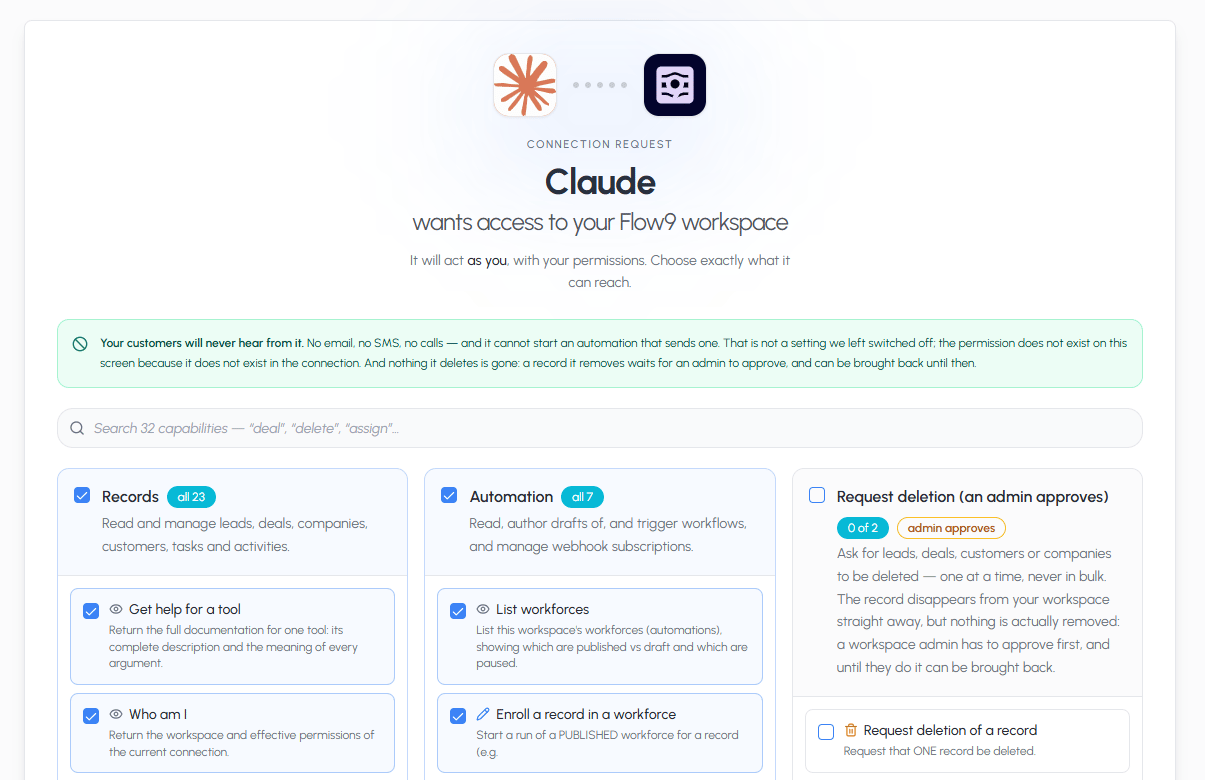 The consent screen lists what Claude is asking for, grouped by area. Tick a
whole group, or open a group and tick individual tools. Anything you leave
unticked is not granted — the tool is not offered to Claude at all.
See [Permissions](/guide/connect-ai/permissions) for what each group covers.
Start a new chat and ask:
```
Who am I connected to in Flow9?
```
Claude should reply with your workspace and the permissions you granted.
## Claude Desktop
The steps are identical to the web app — **Settings → Connectors → Add custom
connector** — and the connection is shared with claude.ai when you use the same
account.
## Claude Code
In a terminal:
```bash theme={null}
claude mcp add --transport http flow9 https://mcp.flow9.online
```
The first time you use a Flow9 tool, Claude Code opens your browser to sign in.
Afterwards run `/mcp` inside Claude Code to check the connection.
## Your first few prompts
Once connected, try these:
```
What does my leads pipeline look like right now?
```
```
Create a lead: Hina Raza at Northwind Traders, hina.raza@northwind.test, source Website
```
```
What tasks are open this week?
```
## Removing the connection
Two places, and either is enough:
* **In Claude** — Settings → Connectors → remove Flow9
* **In Flow9** — **Settings → Connected Apps**, then revoke
Revoking in Flow9 is the stronger action: it invalidates the key immediately,
so the assistant cannot reach your data even if it still shows the connector.
The consent screen lists what Claude is asking for, grouped by area. Tick a
whole group, or open a group and tick individual tools. Anything you leave
unticked is not granted — the tool is not offered to Claude at all.
See [Permissions](/guide/connect-ai/permissions) for what each group covers.
Start a new chat and ask:
```
Who am I connected to in Flow9?
```
Claude should reply with your workspace and the permissions you granted.
## Claude Desktop
The steps are identical to the web app — **Settings → Connectors → Add custom
connector** — and the connection is shared with claude.ai when you use the same
account.
## Claude Code
In a terminal:
```bash theme={null}
claude mcp add --transport http flow9 https://mcp.flow9.online
```
The first time you use a Flow9 tool, Claude Code opens your browser to sign in.
Afterwards run `/mcp` inside Claude Code to check the connection.
## Your first few prompts
Once connected, try these:
```
What does my leads pipeline look like right now?
```
```
Create a lead: Hina Raza at Northwind Traders, hina.raza@northwind.test, source Website
```
```
What tasks are open this week?
```
## Removing the connection
Two places, and either is enough:
* **In Claude** — Settings → Connectors → remove Flow9
* **In Flow9** — **Settings → Connected Apps**, then revoke
Revoking in Flow9 is the stronger action: it invalidates the key immediately,
so the assistant cannot reach your data even if it still shows the connector.