> ## Documentation Index
> Fetch the complete documentation index at: https://flow9.mintlify.site/llms.txt
> Use this file to discover all available pages before exploring further.
# Permissions
> What you are agreeing to when you connect an assistant, and how to change it.
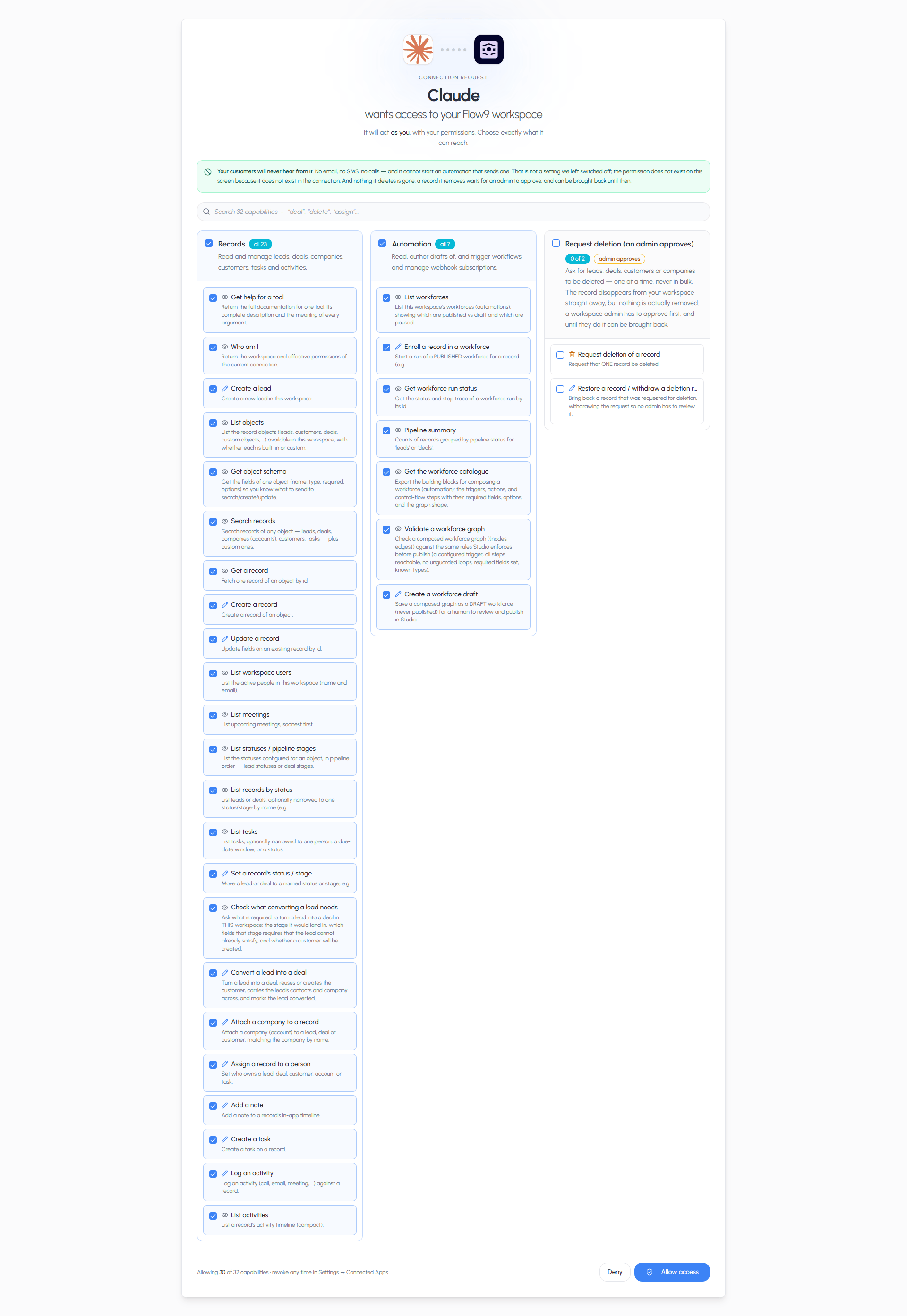
When you connect an assistant, Flow9 shows a consent screen before anything is
shared. Nothing is granted until you approve it there.
## The three groups
Permissions are grouped so you can decide in one go or in detail.
| Group | What it covers |
| ---------------------------------------- | ------------------------------------------------------------------------------------------------------ |
| **Records** | Leads, deals, customers, accounts, tasks and activities — finding, reading, creating and updating them |
| **Automation** | Seeing which automations exist, enrolling a record, checking a run, drafting a new workflow |
| **Request deletion (an admin approves)** | Asking for a record to be deleted, and restoring one |
Tick a whole group, or open it and tick individual tools. **Whatever you leave
unticked is not granted** — the tool is not offered to the assistant at all, so
it cannot be used by accident or by persuasion.
 ## Read-only mode
Your workspace can allow reading but not writing. When it is set that way, the
assistant can search, summarise and report, but every tool that would change a
record is withheld — regardless of what you tick.
This is a workspace-level decision made by an admin, not a per-user one. See
[Enabling AI connections](/admin/ai-connections).
## Deletion is separate, and off by default
Deletion is not included when writes are enabled. It is a separate decision, and
it is **off** unless your workspace has specifically asked for it.
Even when it is on, the assistant cannot destroy anything. A delete becomes a
**request**: the record is hidden, an admin reviews it, and it can be restored
until they approve. See [Security](/guide/connect-ai/security).
## Your own permissions still apply
The assistant acts as **you**. It cannot see or do anything your own Flow9 login
cannot. If you have no access to a module, neither does the assistant — the
consent screen cannot grant you more than you already have.
## Changing your mind
Go to **Settings → Connected Apps** in Flow9. You can see every assistant that
has access and revoke any of them. Revoking is immediate.
To change *what* an assistant may do rather than removing it, revoke it and
connect again, ticking a different set.
## Rate limits
To keep an assistant's activity from crowding out the rest of your workspace,
connections are capped at **30 requests a minute**, 600 an hour and 3,000 a day.
Chatting normally never comes close. Asking an assistant to work through
hundreds of records in one go can, in which case it will slow down rather than
fail — see [Troubleshooting](/guide/connect-ai/troubleshooting).
## Read-only mode
Your workspace can allow reading but not writing. When it is set that way, the
assistant can search, summarise and report, but every tool that would change a
record is withheld — regardless of what you tick.
This is a workspace-level decision made by an admin, not a per-user one. See
[Enabling AI connections](/admin/ai-connections).
## Deletion is separate, and off by default
Deletion is not included when writes are enabled. It is a separate decision, and
it is **off** unless your workspace has specifically asked for it.
Even when it is on, the assistant cannot destroy anything. A delete becomes a
**request**: the record is hidden, an admin reviews it, and it can be restored
until they approve. See [Security](/guide/connect-ai/security).
## Your own permissions still apply
The assistant acts as **you**. It cannot see or do anything your own Flow9 login
cannot. If you have no access to a module, neither does the assistant — the
consent screen cannot grant you more than you already have.
## Changing your mind
Go to **Settings → Connected Apps** in Flow9. You can see every assistant that
has access and revoke any of them. Revoking is immediate.
To change *what* an assistant may do rather than removing it, revoke it and
connect again, ticking a different set.
## Rate limits
To keep an assistant's activity from crowding out the rest of your workspace,
connections are capped at **30 requests a minute**, 600 an hour and 3,000 a day.
Chatting normally never comes close. Asking an assistant to work through
hundreds of records in one go can, in which case it will slow down rather than
fail — see [Troubleshooting](/guide/connect-ai/troubleshooting).