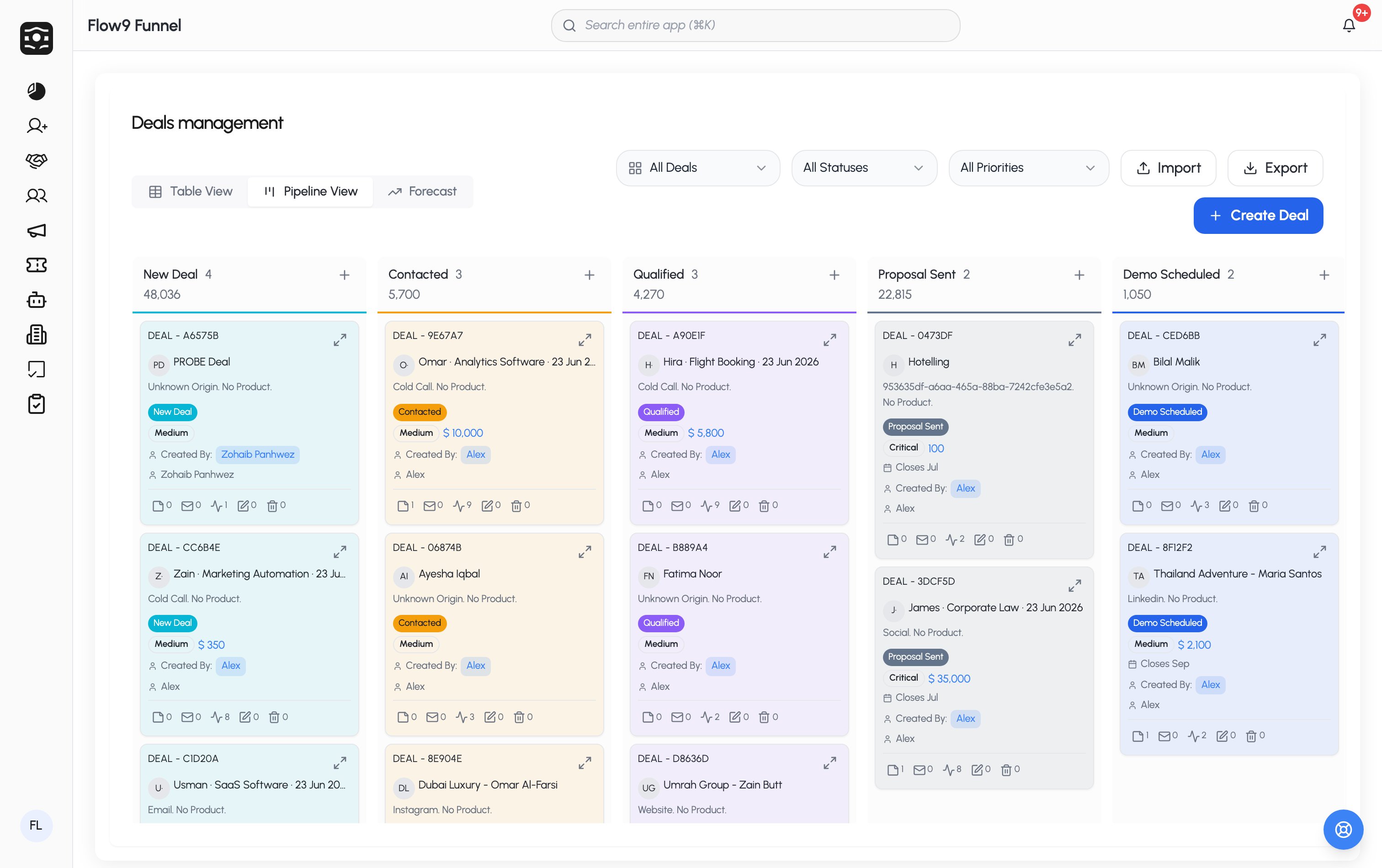
Deals are your opportunities. View them as a table, a Pipeline (kanban), or a Forecast view, and filter by ownership, status, and priority.
The Deals board

Create a deal

Click Create Deal. The key fields:
  • Customer — search for one, or use Create New Customer inline.
  • Product Type and Product — picking a type filters the products.
  • Status — your workspace’s pipeline stages; stages can require certain fields before a deal may enter them.
  • Priority — your workspace’s priority levels.
  • Selling Price (with currency) and Revenue Forecast — the forecast is calculated for you: selling price × the probability your admin assigned to the current status (see below). It updates as the deal moves stages.
  • Plus: account link, assignee, visibility, lead source, custom fields, inquiry details, and notes.
The deal’s name is generated automatically from the customer, product type, and date. Duplicate checking, when enabled, works like it does for leads.

Forecasting with weightage

Each deal status carries a weightage — the percentage of the selling price counted as forecast revenue (e.g. “Negotiation” at 60%). That’s what powers the Revenue Forecast field and the Forecast view, giving you a probability-adjusted pipeline value rather than raw totals.

Losing a deal honestly

Moving a deal to a Lost status requires a Reason of Lost from your workspace’s list — so your loss reporting stays meaningful.

The deal page

A deal’s detail page is your workspace for that opportunity, with tabs for: Deal Details · Activities (log calls, meetings, emails — each activity type your admin enabled, with counts per type) · Deal Team · Contacts · Conversations · Products · Quotes · Files — plus the deal’s invoices and tasks, and a History tab recording every property change.
Quotes with big discounts may need sign-off before you can invoice — see Invoices & approvals.